Cloud delivery with Cloud Run, Terraform, and Artifact Registry
Why this stack works
When we build a web app, coding is only half of the story.
The other half is delivery: build, store, deploy, and update safely.
This stack solves that flow clearly:
- Cloud Build builds the container image.
- Artifact Registry stores the image version.
- Terraform defines infra as code.
- Cloud Run runs the app with autoscaling.
One pipeline, clear ownership, less manual deploy work.
Tool roles (simple view)
| Tool | Main role | Why it matters |
|---|---|---|
| Cloud Build | Build and push image | Reproducible builds from source |
| Artifact Registry | Store versioned image | Traceable deploys and rollback |
| Terraform | Provision infra | Same setup across dev/stage/prod |
| Cloud Run | Run container app | Serverless scale and pay-per-use |
Terraform use-cases: when and why
Terraform is most useful when infrastructure starts to repeat across environments or people.
Use Terraform when:
- You have dev/stage/prod and want the same infra shape in all of them.
- Your team wants infra changes reviewed in PRs, same as app code.
- You need repeatable setup for Cloud Run, IAM, Artifact Registry, networking, and secrets.
- You want safer rollback and auditing (what changed, when, and by whom).
For a single demo app, console clicks may be fine.
For real delivery flow with more than one environment, Terraform quickly pays back.
End-to-end flow
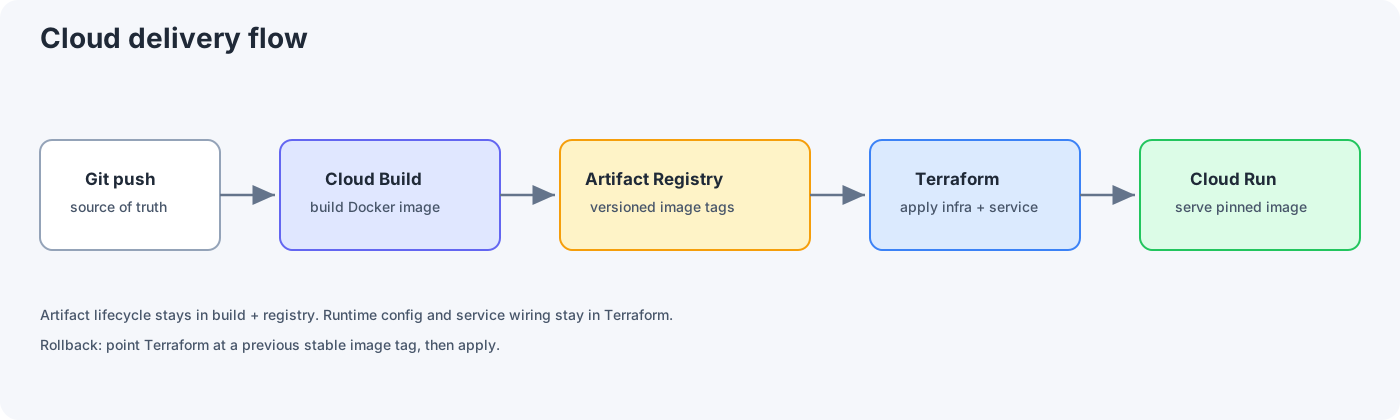
This delivery flow has two connected tracks:
- Build track: Git push triggers Cloud Build, which builds the Docker image and pushes it to Artifact Registry.
- Deploy track: Terraform applies infrastructure and updates Cloud Run to the target image tag.
- Rollback track: set the image tag to a previous stable version and run Terraform apply again.
The key split:
- App artifact lifecycle is handled by build + registry.
- Runtime infrastructure lifecycle is handled by Terraform.
Scenario: Deploy a Next.js app
Below is a real-shaped example: Next.js builds inside Docker, the image runs on Cloud Run, and Cloud Build pushes to Artifact Registry.
A) Pick how Next.js runs in the container
Option 1: Static export (output: 'export')
Good for marketing sites, docs, and blogs that ship as HTML under out/.
Run it behind nginx in the container. Cloud Run expects the process to listen on PORT (often 8080), so nginx should listen on that port.
Option 2: Node server (output: 'standalone')
Use when you need SSR, Route Handlers, or dynamic rendering.
Build produces .next/standalone; you run node server.js and set PORT to what Cloud Run gives you.
Pick one path per project. Mixing export and standalone in one Dockerfile only confuses the build.
B) Dockerfile: static export + nginx (concrete)
Dockerfile (multi-stage: build Next, serve out/):
# --- build ---
FROM node:22-alpine AS builder
WORKDIR /app
COPY package.json package-lock.json* ./
RUN npm ci
COPY . .
# Your app should run `next build` and emit `out/` (next.config: output: "export")
RUN npm run build

# --- run ---
FROM nginx:1.27-alpine
COPY nginx.conf /etc/nginx/conf.d/default.conf
COPY --from=builder /app/out /usr/share/nginx/html
EXPOSE 8080
nginx.conf (listen on 8080 so Cloud Run’s default port matches):
server {
  listen 8080;
  server_name _;
  root /usr/share/nginx/html;
  index index.html;

  location / {
    try_files $uri $uri/ $uri.html /index.html;
  }
}
.dockerignore (keeps the build context small):
node_modules
.next
out
.git
.env*
Local smoke test:
docker build -t website:local .
docker run --rm -p 8080:8080 website:local
# Open http://localhost:8080
C) Dockerfile: Next.js standalone (when you are not using export)
In next.config use output: "standalone", then:
FROM node:22-alpine AS builder
WORKDIR /app
COPY package.json package-lock.json* ./
RUN npm ci
COPY . .
RUN npm run build

FROM node:22-alpine AS runner
WORKDIR /app
ENV NODE_ENV=production
ENV PORT=8080
ENV HOSTNAME=0.0.0.0
COPY --from=builder /app/public ./public
COPY --from=builder /app/.next/standalone ./
COPY --from=builder /app/.next/static ./.next/static
CMD ["node", "server.js"]
Cloud Run sets PORT; the standalone server reads it, so you usually do not hardcode another port.
D) cloudbuild.yaml: build image and push to Artifact Registry
Substitutions match the gcloud builds submit example later. Adjust project IDs and names.
substitutions:
  _REGION: asia-southeast1
  _REPO: web-repo
  _IMAGE_NAME: website
  _TAG: v1

steps:
  - name: gcr.io/cloud-builders/docker
    args:
      - build
      - "-t"
      - "${_REGION}-docker.pkg.dev/$PROJECT_ID/${_REPO}/${_IMAGE_NAME}:${_TAG}"
      - .

images:
  - "${_REGION}-docker.pkg.dev/$PROJECT_ID/${_REPO}/${_IMAGE_NAME}:${_TAG}"
Cloud Build’s service account needs permission to push to Artifact Registry (e.g. Artifact Registry Writer on the repo or project).
E) Build and push image with Cloud Build
Example command:
gcloud builds submit --config=cloudbuild.yaml \
  --substitutions=_REGION=asia-southeast1,_REPO=web-repo,_IMAGE_NAME=website,_TAG=v1 \
  --project=my-web-project
What this gives you:
- A tagged image like
asia-southeast1-docker.pkg.dev/my-web-project/web-repo/website:v1 - A deployment artifact you can reuse across environments
F) Keep image in Artifact Registry
Why this is important:
- Every release has a clear version.
- Rollback is easy: deploy an older tag.
- Security scanning and access control are centralized.
G) Manage Cloud Run with Terraform
Small Terraform sample:
resource "google_cloud_run_v2_service" "website" {
  name     = "website"
  location = var.region

  template {
    containers {
      image = var.image_uri
      ports {
        container_port = 8080
      }
    }
  }
}
H) How to write Terraform (practical workflow)
Think in this order: providers -> variables -> resources -> outputs.
- Provider and project context
terraform {
  required_providers {
    google = {
      source  = "hashicorp/google"
      version = "~> 5.0"
    }
  }
}

provider "google" {
  project = var.project_id
  region  = var.region
}
- Input variables (things that change by environment)
variable "project_id" { type = string }
variable "region"     { type = string }
variable "service_name" {
  type    = string
  default = "website"
}
variable "image_uri" { type = string }
- Resources (what you want Terraform to manage)
resource "google_artifact_registry_repository" "web_repo" {
  location      = var.region
  repository_id = "web-repo"
  format        = "DOCKER"
}

resource "google_cloud_run_v2_service" "website" {
  name     = var.service_name
  location = var.region

  template {
    containers {
      image = var.image_uri
      ports {
        container_port = 8080
      }
    }
  }
}
- Outputs (what other steps need)
output "cloud_run_uri" {
  value = google_cloud_run_v2_service.website.uri
}
- Environment files
Use a terraform.tfvars (or dev.tfvars, prod.tfvars) per environment:
project_id   = "my-web-project-dev"
region       = "asia-southeast1"
service_name = "website"
image_uri    = "asia-southeast1-docker.pkg.dev/my-web-project-dev/web-repo/website:v1"
- Execution cycle
terraform fmt
terraform init
terraform validate
terraform plan -var-file=dev.tfvars
terraform apply -var-file=dev.tfvars
That is the full writing loop: write small blocks, validate early, plan before apply, then promote the same code to the next environment by changing only tfvars.
I) Recommended Terraform folder structure
Keep Terraform files boring and predictable:
terraform/
  providers.tf
  variables.tf
  main.tf
  outputs.tf
  dev.tfvars
  prod.tfvars
Minimal example:
providers.tf: provider and Terraform version.variables.tf: typed inputs (project_id,region,image_uri).main.tf: Cloud Run + Artifact Registry + IAM resources.outputs.tf: service URL, useful IDs.*.tfvars: environment-specific values only.
This layout makes onboarding easier and reduces "where is that config?" confusion.
Run:
terraform init
terraform plan
terraform apply
Set container_port to the port the container actually listens on (here 8080, same as nginx and the standalone example with PORT=8080).
Now infra and deploy config are reviewable in Git, same as application code.
Design choices that save time later
Pin every deployment by image tag
Do not deploy floating tags like latest in production.
Use explicit tags (v1, v2, or commit SHA) so release history is deterministic.
Keep environments separate
Use separate Terraform state or projects for dev/stage/prod. This avoids accidental cross-environment impact.
Make rollback a first-class path
Because Cloud Run deploys from image tags, rollback should be one fast command or one Terraform variable change.
When this is overkill
This setup is strong, but not always needed.
- For tiny prototypes, full Terraform can feel heavy.
- Teams new to IaC need onboarding time.
- Strict release controls add process overhead.
If your app is still very early, start small and introduce Terraform once services or environments grow.
Practical checklist
- Build image in CI, not on local machine
- Push only versioned tags to Artifact Registry
- Deploy Cloud Run via Terraform, not console clicks
- Keep runtime variables in secure config/secrets
- Verify rollback path before production release
Cloud Run, Terraform, Artifact Registry, and Cloud Build work best as one delivery system. Wired together, deploys stay predictable and reviewable when something breaks at 2am.